Block users who attempts to bypass network controls by using a mobile hotspot: pfSense
Here is the step-by-step implementation guide to automatically alert your management team whenever a user attempts to bypass network controls by using a mobile hotspot. Because pfSense runs on FreeBSD, we can deploy a lightweight shell script that monitors packet logs for TTL mismatches and sends instant notification alerts.
Here is the step-by-step implementation guide to automatically alert your management team whenever a user attempts to bypass network controls by using a mobile hotspot.Because pfSense runs on FreeBSD, we can deploy a lightweight shell script that monitors packet logs for TTL mismatches and sends instant notification alerts.
Step 1: Write the Automated Detection Script
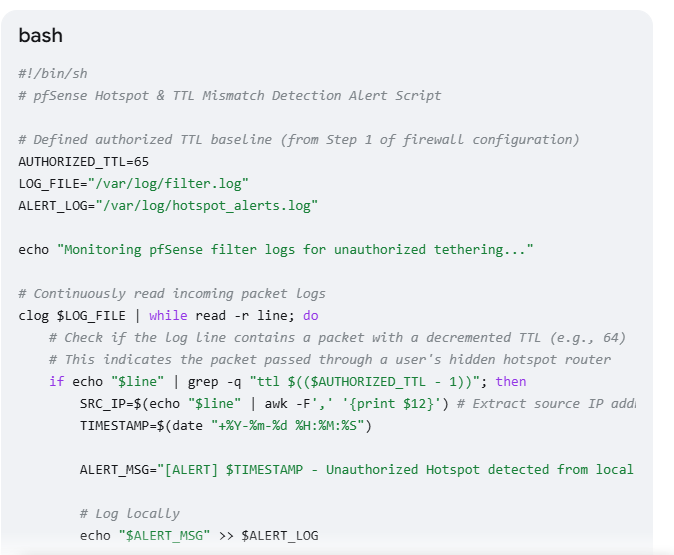
This script continuously reads the system packet logs, flags packets where a TTL mismatch occurs (indicating a downstream tethered device), and logs the offending device's IP or MAC address.
- Navigate to Diagnostics > Command Prompt in your pfSense dashboard.
- Under the Upload File section, you can upload a script or use an SSH terminal to save the following code as /root/hotspot_alert.sh:
bash
#!/bin/sh
# pfSense Hotspot & TTL Mismatch Detection Alert Script

# Defined authorized TTL baseline (from Step 1 of firewall configuration)
AUTHORIZED_TTL=65
LOG_FILE="/var/log/filter.log"
ALERT_LOG="/var/log/hotspot_alerts.log"

echo "Monitoring pfSense filter logs for unauthorized tethering..."

# Continuously read incoming packet logs
clog $LOG_FILE | while read -r line; do
 # Check if the log line contains a packet with a decremented TTL (e.g., 64)
 # This indicates the packet passed through a user's hidden hotspot router
 if echo "$line" | grep -q "ttl $(($AUTHORIZED_TTL - 1))"; then
 SRC_IP=$(echo "$line" | awk -F',' '{print $12}') # Extract source IP address
 TIMESTAMP=$(date "+%Y-%m-%d %H:%M:%S")

 ALERT_MSG="[ALERT] $TIMESTAMP - Unauthorized Hotspot detected from local IP: $SRC_IP (Mismatched TTL)"

 # Log locally
 echo "$ALERT_MSG" >> $ALERT_LOG

 # Trigger native pfSense system notification (Email / Telegram if configured)
 /usr/local/bin/php -r "require_once('notices.inc'); file_notice('Hotspot_Block', '$ALERT_MSG', 'Network Security', true);"
 fi
done

Use code with caution.
Step 2: Make the Script ExecutableTo allow pfSense to run this monitoring loop in the background:
- Go to Diagnostics > Command Prompt.
- Run the following command in the Execute Shell Command box:bashchmod +x /root/hotspot_alert.sh Use code with caution.
Step 3: Schedule the Script via Cron JobTo ensure the script starts automatically when the Netgate device boots and runs persistently in the background, install the Cron package.
- Navigate to System > Package Manager > Available Packages.
- Search for Cron and click Install.
- Once installed, navigate to Services > Cron.
- Click Add to create a new background process rule with these parameters:
- Minute: 0
- Hour: *
- Day of Month: *
- Month: *
- Day of Week: *
- User: root
- Command: /usr/sbin/daemon -f /root/hotspot_alert.sh (The daemon flag runs it silently in the background)
- Click Save.
Step 4: Configure Instant Notifications (Email or Telegram)To receive these alerts instantly on your phone or computer, ensure pfSense native notifications are set up:
- Navigate to System > Advanced > Notifications.
- For Email Alerts: Fill in your organization's SMTP Server, port, and destination email address.
- For Telegram Alerts: Toggle Telegram and paste your management channel's API Bot Token and Chat ID.
- Click Save & Test.
Any time an employee turns on a mobile hotspot, the script will instantly trigger a system notice and push an alert detailing exactly which local IP address is attempting to share its connection.
If you like us to help you customizing the script to block the offending device's MAC address completely for a set time limit once a hotspot is detected, or to configure a custom dashboard widget to display live alerts...Just let us know