Add an Internal 12V Auxiliary Cooling Fan to Prevent PC Overheating
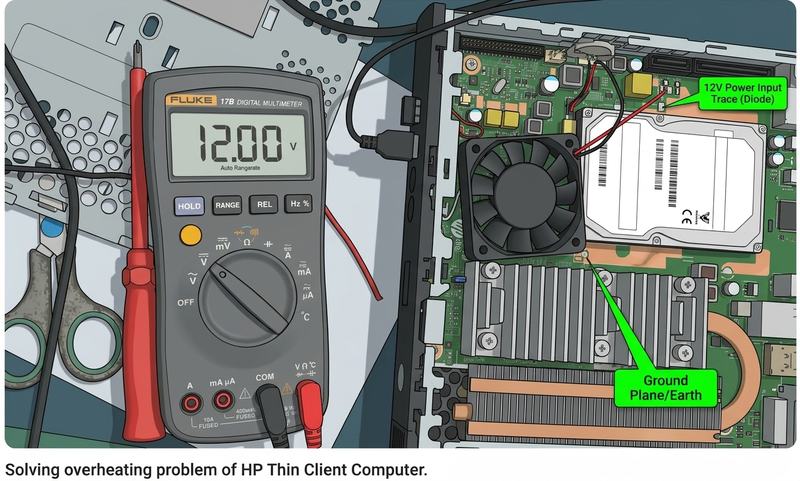
Overheating is a common issue in compact computers and legacy workstations. When internal components like the CPU and hard drive get too hot, the system triggers thermal throttling, freezes, or experiences sudden shutdowns. If the factory configuration lacks adequate airflow, you can permanently solve thermal issues by hardwiring a custom 12V auxiliary mini cooling fan directly onto the motherboard. Below is a step-by-step modification guide to safely probe for power, solder the connections, and secure the
Required Tools and Components
- 12V DC mini cooling fan (sized appropriately to fit inside the chassis)
- Soldering iron and high-quality solder wire
- Multimeter (to test and verify voltage rails)
- Electrical tape or non-conductive mounting adhesive
- Hand tools (screwdriver, wire strippers)
Step 1: Locating the Power and Ground Rails
Before soldering, you must identify a stable power source on the board that outputs exactly 12V DC or slightly less. Applying too much voltage will burn out the mini fan, while too little voltage will prevent it from spinning at full cooling capacity.
- The Ground Line (Black Cable): Connect the black wire from your fan to the system ground. This can be attached to the primary grounding plane, the main chassis housing, or the earthing trace on the motherboard.
- The 12V Power Line (Red Cable): Locate the main power input area near the primary power toggle switch, input capacitors, and power regulation diodes. Use a multimeter to find the 12V rail trace running off the side of the main power input diode.
Step 2: Soldering the Fan Connections
Once your power points are verified, power off and unplug the computer completely before initializing any soldering work.
[ Motherboard Power Section ]
(Solder Red Wire Here)
┌──────────────┐
│ Input Diode │──────────┐
└──────────────┘ │
│ ┌─┴─┐
▼ │ 12│
[ Filter Capacitor ] │ V │ (Mini Cooling Fan)
│ └─┬─┘
▼ │
(Solder Black Wire Here) │
===================================▼=
[ Main Chassis Ground / Earthing Plane ]
- Solder the Positive Wire: Carefully solder the red fan cable directly to the output pad of the 12V power diode immediately next to the primary filter capacitor. Ensure a clean, shiny joint with no solder bridges touching neighboring components.
- Solder the Negative Wire: Solder the black fan cable to the nearest structural chassis ground point or primary earth trace.
- Insulate: Ensure no exposed wire strands are left open. If necessary, shield adjacent traces with kapton or electrical tape.
Step 3: Positioning the Fan and Securing Storage Drivers
To optimize internal airflow, position the auxiliary fan where it can continuously exhaust heat away from the core components.
- Mount the Fan: Secure the mini fan inside the chassis using non-conductive adhesive or mounting points. Ensure it is firmly attached with zero physical movement so it won't rattle or slide when the PC is moved.
- Positioning: Orient the fan blades to blow air directly across the CPU heatsink and the Hard Drive unit.
- Secure the Hard Drive: If you have replaced the original factory storage module with a standard SATA hard drive, ensure the plastic alignment spacers or caddies are properly locked in place. This holds the drive steady and stops it from shifting vertically inside the bay.
Step 4: Testing and Final Assembly
Before sealing the case completely, perform a quick power-on test to make sure everything functions safely.
- Plug the main power adapter back into the computer.
- Power on the system and verify visually that the auxiliary fan spins immediately and quietly.
- Align the chassis casing lid, checking that no internal fan wires are pinched by the frame edge.
- Press the case panels together securely until all edges snap locked cleanly into position, then tighten the external case screws.
Final Results
With the modification complete, your hardware system will now maintain sustained low temperatures under heavy loads. This modification allows the computer to run continuously for hours on end without encountering thermal performance drops or overheating shutdowns.
chauke.org