LinkWave offline Wi-Fi communication app
How to place a local browser call
IT TECHNICAL SUPPORT REPORT
LinkWave offline Wi-Fi communication app
How to restore, run, test and support the Android and Windows prototype
1. Executive summary
The recording documents a prototype for local, app-to-app communication on Android and Windows. The design separates a .NET MAUI desktop/mobile shell from a browser-based WebRTC call companion. The native shell includes local-device discovery, text chat and file transfer. The browser companion is intended to provide voice, chat and file transfer over a direct local peer connection after a manual offer/answer exchange.
The recording does not demonstrate a completed call or a verified Android/Windows build. The native project restore stopped with NU1301 during TLS authentication to api.nuget.org. Treat the work as a development prototype, not a finished public communication product.
Recommended order: restore NuGet access and build both targets; test native discovery, chat and file transfer on two devices; test the browser WebRTC call on the same reachable Wi-Fi; then close the native transport security gap and decide whether voice will be integrated into MAUI or shipped as a browser experience. Ordinary phone-number calling remains out of scope until a SIP/VoIP provider or PBX is chosen.
2. What the video shows
The supplied MKV is approximately 12 minutes 13 seconds long. Sampled frames show a portrait screen recording of the Codex development conversation titled “Build three-switch keyboard control,” later project edits, and File Explorer displaying the generated LinkWave outputs.
The visible conversation records the requested scope: Android and Windows, app-to-app calls first, and phone-number provider integration later. The project changes shown include a .NET MAUI app targeting net10.0-android and net10.0-windows10.0.19041.0, a local network service, and an OfflineWiFiCall.html companion.
A visible support issue is NU1301: NuGet cannot load https://api.nuget.org/v3/index.json because TLS authentication fails with “No credentials are available in the security package.” The recording shows the error and the source package output; it does not show a successful restore, completed build, microphone permission test, or live peer call.
3. Current prototype inventory
| Component | Visible/recorded design | Current verification status |
|---|---|---|
| Native LinkWave app | C# .NET MAUI project targets Android and Windows. It advertises UDP discovery on port 47655, TCP messaging/file receiver on port 47654, text messages, and file transfer up to 8 MB. Files received by the native app are saved under private app storage. | Source was created. Build was blocked by NuGet TLS restore failure; runtime behavior was not verified. |
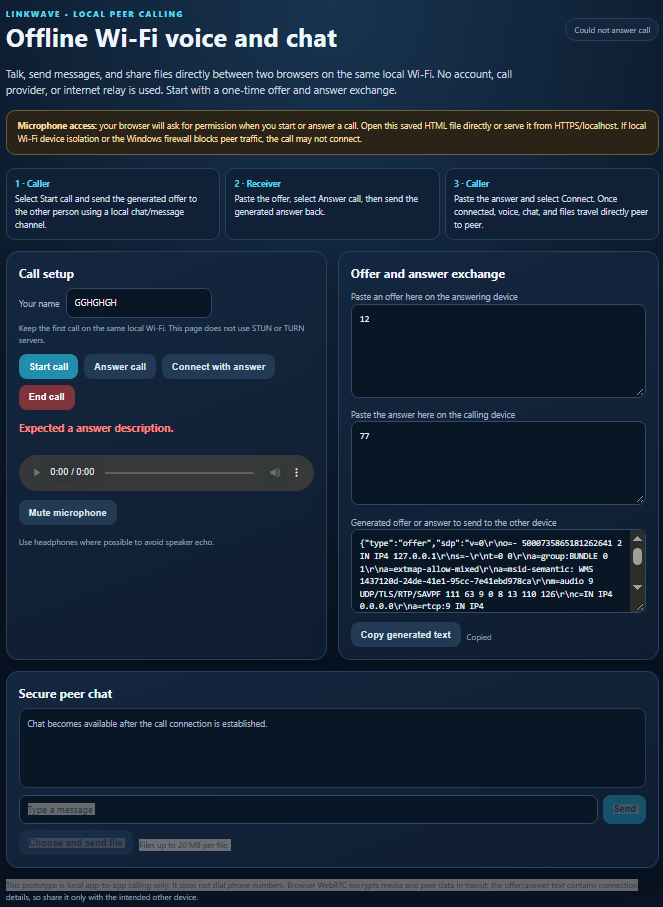
| Offline Wi-Fi browser page | OfflineWiFiCall.html uses browser WebRTC for microphone audio and a peer data channel for chat and files. No STUN/TURN service is configured. The first session uses manually exchanged SDP offer and answer text. Browser prototype file transfer is limited to 20 MB. | Page source was created and shown in the session. No connected call or two-device browser test is visible in the recording. |
| Phone-number calling | Not included. Ordinary numbers need a SIP/VoIP provider or private PBX and its account configuration. | Explicitly deferred by the user until after app-to-app calling. |
| Security | The native TCP/UDP prototype has no peer authentication or encryption. The browser WebRTC media/data connection is encrypted by the browser transport once established; manual signaling text can expose local network candidate information. | Security hardening and operational testing remain release blockers. |
These are two related but distinct implementations: the MAUI app owns native LAN discovery/chat/file transfer; the browser page owns the current WebRTC voice prototype. The video does not show them merged into one native call workflow.
4. Intended connection flow
The MAUI prototype announces its device over local UDP broadcast. A peer can then send a text or file packet directly over TCP. The browser call companion does not use that discovery service automatically: the caller generates an SDP offer, the receiver pastes it and returns an SDP answer, and the caller applies the answer. The browser then attempts a direct peer connection using local ICE candidates only.
WebRTC separates media/data transport from signaling. The offer and answer need an exchange channel; in this prototype that is a manual copy/paste step, with the native LinkWave chat suggested as a local exchange path. With no STUN/TURN server, the browser connection is restricted to local peers and may fail if the Wi-Fi router isolates clients or firewalls block peer traffic. [3]
Android Wi-Fi Direct is a possible future discovery/connectivity option for nearby Android devices without a router, but the recorded MAUI code uses ordinary IP broadcast/TCP and does not implement Wi-Fi Direct. [2]
5. How to restore and run the native app
- 1. Open outputs/LocalLink/LocalLink.csproj in Visual Studio 2026 on the development PC. The project targets net10.0-android and net10.0-windows10.0.19041.0. Windows can build MAUI Windows and Android targets when the relevant Visual Studio workloads and Android SDK are installed. [1]
- 2. In Visual Studio, open Tools > NuGet Package Manager > Package Manager Settings > Package Sources. Confirm the nuget.org source is enabled and points to https://api.nuget.org/v3/index.json. Select Allow NuGet to download missing packages and automatic restore if those options are off. Then right-click the project or solution and choose Restore NuGet Packages. [4]
- 3. If NU1301/TLS authentication repeats, test whether the service-index URL loads in the browser. Check Windows date/time, VPN, proxy and firewall. On managed or inspected networks, ask the network administrator to permit api.nuget.org and trust the organization’s valid TLS inspection certificate or configure the approved proxy in Visual Studio. Do not disable certificate validation or switch to an untrusted package feed. Microsoft notes that proxy, firewall and SSL-inspection certificate problems can block NuGet restore. [5]
- 4. After restore succeeds, select Windows Machine as the target and press F5. Then select an Android emulator or USB-connected Android device and run the Android target. Android device setup requires the Android SDK and an emulator or developer-enabled phone. [6]
- 5. For LAN discovery, run two app instances on the same reachable private Wi-Fi. If Windows Firewall prompts, allow the app only on a trusted private network. Do not use a guest Wi-Fi network with client isolation. Send only test messages and non-sensitive sample files until native transport encryption and authentication are implemented.
Expected first-run behavior: the app starts its UDP listener and TCP receiver, then the nearby-device list should show the other instance. Select a peer, send a short text message, and then try a small non-sensitive file. The recorded source sets an 8 MB maximum. A Windows firewall rule, router isolation, VPN, or different subnets can prevent the connection.
6. How to place a local browser call
- 1. Copy outputs/LocalLink/OfflineWiFiCall.html to both devices. Use a current Chrome, Edge or Android browser and connect both devices to the same reachable Wi-Fi.
- 2. Open the file on each device and grant microphone permission. Browser microphone capture requires a secure context and explicit permission; modern browsers generally treat local file URLs as secure, but behavior varies. If the browser refuses microphone access, serve the page from HTTPS or localhost and grant permission in site settings. [7]
- 3. On the caller device, select Start call. Wait for the offer to finish generating, then copy the generated offer text. Send it to the other device through the local LinkWave chat or another trusted local exchange path. Treat the SDP as connection information and send it only to the intended peer.
- 4. On the receiver device, paste the offer and select Answer call. Copy the generated answer text and return it to the caller.
- 5. On the caller device, paste the answer and select Connect with answer. Wait for the status to show Connected. Then test audio, mute, a short chat message, and a small file. A received file appears as a download link; tap it to save.
This manual setup is a prototype workflow, not one-tap calling. The browser companion is separate from the MAUI native UI, and the recording does not demonstrate that the two browsers connected successfully.
7. Troubleshooting guide
| Symptom | Likely cause | Support action |
|---|---|---|
| NuGet restore fails with NU1301 | Network, proxy, firewall, source configuration, or TLS certificate/authentication failure. | Verify nuget.org source and restore setting; open the service-index URL in a browser; check VPN/proxy/firewall and trusted TLS inspection certificate. Escalate managed proxy credentials to IT; do not bypass certificate checks. |
| No native device appears | Different Wi-Fi/subnet, guest client isolation, UDP broadcast blocked, app stopped, or firewall. | Put both devices on the same private LAN; disable guest/AP isolation for the test; allow the app through Windows Firewall on Private networks; refresh discovery. |
| Native text/file send times out | Peer not listening, TCP port blocked, stale peer address, receiver app suspended. | Restart both apps, refresh peers, confirm same LAN, check firewall/router policy; retry a short message then a small file. |
| Browser microphone unavailable | Permission denied, insecure origin, mic already in use, or missing device. | Use a supported browser, grant mic permission, close other mic apps, verify OS microphone privacy settings, and serve through HTTPS/localhost if file-origin access is refused. |
| WebRTC remains connecting or fails | Offer/answer mismatch/expired, different network, client isolation, VPN, or blocked UDP host candidates. | Start a fresh call, exchange the current complete offer/answer without edits, use same Wi-Fi, disable guest isolation, test with VPN off, and allow browser network access on a trusted private profile. |
| No sound after connection | Wrong audio device, muted track, autoplay blocked, or OS/browser audio routing. | Check mute state, select the correct system input/output, tap Play on remote audio if shown, and use headphones to reduce echo. |
| Phone number cannot be called | No provider/PBX integration is configured. | Treat this as expected. Select a SIP/VoIP provider or private PBX before implementing number dialing; do not enter account passwords in public chat or source code. |
8. Security, privacy and safe operation
The native LAN transport is explicitly unencrypted and unauthenticated in this prototype. Anyone able to reach its TCP listener could potentially send data or files. Keep it on a trusted test network and do not use it for confidential content, personal records, passwords, payment data, or production calls.
- Before public distribution, add authenticated device pairing and encrypted transport, validate sender identity, rate-limit packets, cap message/file sizes, reject malformed packets, and validate file names and storage paths.
- Obtain clear microphone permission only when the user starts/answers a call. Provide an in-call indicator, mute and hang-up controls, and stop microphone tracks immediately when a call ends.
- Keep logs free of message bodies, file contents, SDP blobs, phone numbers and access tokens. Make file saving user-visible and avoid automatic execution of received files.
- Use signed builds and a privacy notice before public release. Document supported OS/browser versions, data retention, permissions, known limitations and a security contact.
WebRTC provides encrypted media/data transport once a peer connection is established, but it does not make the entire product secure by itself. Signaling and peer identity still need protection; manual offer/answer exchange should only go to the intended contact. [3]
9. Release readiness checklist
- Restore all NuGet dependencies and build both Android and Windows targets in Visual Studio on a clean machine.
- Run two Android devices, two Windows installations, and one Android-to-Windows pairing on a real private Wi-Fi network.
- Verify UDP discovery, text, 8 MB native file bound, Android app lifecycle, Windows firewall behavior and recovery after Wi-Fi loss.
- Run browser voice tests on Chrome/Edge Android and Windows; verify mic denial, mute, hang-up, reconnect, larger file handling and call timeout behavior.
- Implement security pairing/encryption for the MAUI native LAN protocol before using real user data.
- Decide whether to merge WebRTC into the native app or keep the browser page as a separate product. Replace manual offer/answer with an authenticated local signaling flow if one-tap calls are required.
- Do not claim PSTN/phone-number support until a SIP/VoIP provider or PBX, account lifecycle, emergency-call policy, costs, caller-ID rules and jurisdictional requirements are agreed.
10. Recommended next actions
- 1. Resolve the NuGet TLS/proxy error first and capture the successful Windows and Android build logs.
- 2. Run the native text/file smoke test between two devices on the same private Wi-Fi, using dummy data only.
- 3. Run the browser manual-signaling call on two devices. Record browser name/version, Wi-Fi topology, microphone permissions, ICE state and outcome.
- 4. Select the production architecture: native WebRTC engine with platform adapters, or browser WebRTC companion with local signaling. Preserve the provider/PSTN mode as a separate later milestone.
- 5. Add peer authentication, encryption for native LAN transfers, user consent, logging controls, installer/update mechanism and a repeatable release validation plan.
11. Conclusion
The recording documents a useful prototype and a credible local-first direction, but it does not establish a functioning or distributable calling product. The next support priority is the NuGet TLS restore failure because it prevents build verification. After that, validate the native chat/file path and the separate browser WebRTC voice path on two real devices. Secure the native transport before sending sensitive data, and keep telephone-number calling deferred until an approved provider or PBX is supplied.
References
- [1] Microsoft .NET MAUI supported platforms · https://learn.microsoft.com/en-us/dotnet/maui/supported-platforms?view=net-maui-10.0
- [2] Android Developers Wi-Fi Direct · https://developer.android.com/develop/connectivity/wifi/wifi-direct
- [3] WebRTC peer connections and signaling · https://webrtc.org/getting-started/peer-connections
- [4] Microsoft NuGet package restore · https://learn.microsoft.com/en-us/nuget/consume-packages/package-restore
- [5] Microsoft Visual Studio proxy and firewall troubleshooting · https://learn.microsoft.com/en-us/visualstudio/ide/reference/proxy-firewall-troubleshoot?view=visualstudio
- [6] Microsoft .NET MAUI installation and Android setup · https://learn.microsoft.com/en-us/dotnet/maui/get-started/installation?view=net-maui-10.0
- [7] MDN MediaDevices.getUserMedia secure-context and permission requirements · https://developer.mozilla.org/en-US/docs/Web/API/MediaDevices/getUserMedia