Managing the pfSense+ Dashboard and Monitoring User Activity
This guide explains how to customize your pfSense dashboard widgets, restrict visible system information for security, and track administrator changes using system logs and configuration history. Customizing Dashboard System Information The System Information widget can be customized to display only the metrics you need while hiding sensitive hardware and configuration data from unauthorized onlookers.
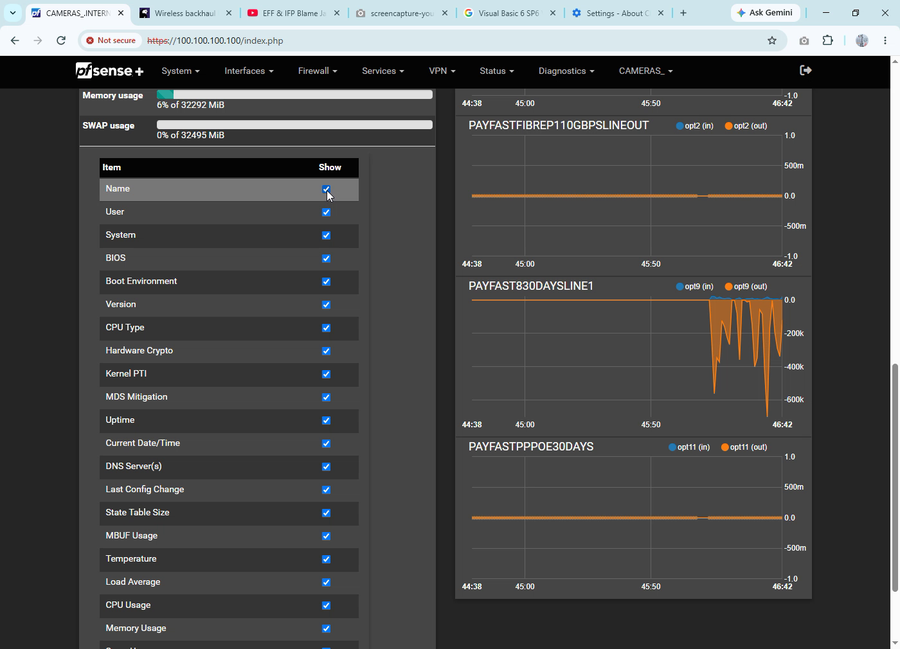
Managing the pfSense Dashboard and Monitoring User ActivityThis guide explains how to customize your pfSense dashboard widgets, restrict visible system information for security, and track administrator changes using system logs and configuration history.Customizing Dashboard System InformationThe System Information widget can be customized to display only the metrics you need while hiding sensitive hardware and configuration data from unauthorized onlookers.How to Add or Remove Dashboard Fields
- Navigate to your main pfSense Dashboard.
- Locate the System Information widget and click the Wrench icon (Settings) in the top-right corner.
- Toggle the checkboxes to select what you want to appear:
- Recommended for everyday monitoring: User, Uptime, Current Time, DNS Servers, Memory Usage, CPU Usage, and Temperature.
- Recommended to hide for security: BIOS, Boot Version, Hardware Crypto, and Last Config Change.
- Click Save to apply the changes.
🔒 Security Tip: Hide the Last Config field on public-facing management screens to prevent unauthorized personnel from gathering intelligence on recent network modifications.
Tracking System Changes and Employee ActivityIf you need to audit changes or investigate a configuration issue caused by an internal user, pfSense tracks all activities by timestamp and user account.Method 1: Reviewing System Logs
- Navigate to Status > System Logs in the top menu.
- Review the live log data to track general system events, daemon updates, and authentication requests.
Method 2: Checking Configuration HistoryTo see exactly who changed what and when, use the Built-in Configuration History tool:
- Navigate to Diagnostics > Backup & Restore.
- Click on the Config History tab.
- Here, you will see a detailed chronological list showing:
- Date and Time of the modification.
- Username of the account that made the change.
- Description of the exact settings that were updated.
Device and Version Details This deployment utilizes official Netgate hardware optimized for enterprise network management.
- Firmware Base Version: pfSense Plus 26.07 (Released mid-2026)
- Advanced Capability: This version includes advanced traffic filtering capabilities. If your organization needs to detect, restrict, or block unauthorized Wi-Fi hotspots and tethering on your network, this can be programmatically enforced via custom firewall rules and TTL (Time-to-Live) modifications.
If you like me to draft a step-by-step technical guide on how to block unauthorized mobile hotspots/tethering using this version of pfSense, or do you need help configuring automated external logging (Syslog)... Just let us know. CHAUKE.ORG
“Customizing Dashboard System Information The System Information widget can be customized to display only the metrics you need while hiding sensitive hardware and configuration data from unauthorized onlookers. How to Add or Remove Dashboard Fields 1. Navigate to your main pfSense Dashboard. 2. Locate the System Information widget and click the Wrench icon (Settings) in the top-right corner. 3. Toggle the checkboxes to select what you want to appear: • Recommended for everyday monitoring: User, Uptime, Current Time, DNS Servers, Memory Usage, CPU Usage, and Temperature. • Recommended to hide for security: BIOS, Boot Version, Hardware Crypto, and Last Config Change. 4. Click Save to apply the changes”