Resolving Captive Portal Disconnections for 30-Day Vouchers pfSense+
Resolving Captive Portal Disconnections for 30-Day Vouchers If your clients on 30-day vouchers are frequently disconnected every 12 to 24 hours and forced to re-enter their voucher codes, it is typically because voucher centralization is disabled, causing session timeouts. You can permanently resolve this by creating a MAC address pass-through exception. This allows the client's device to stay connected for the full 30 days without interruptions.
Step 1: Locate the Client's MAC Address
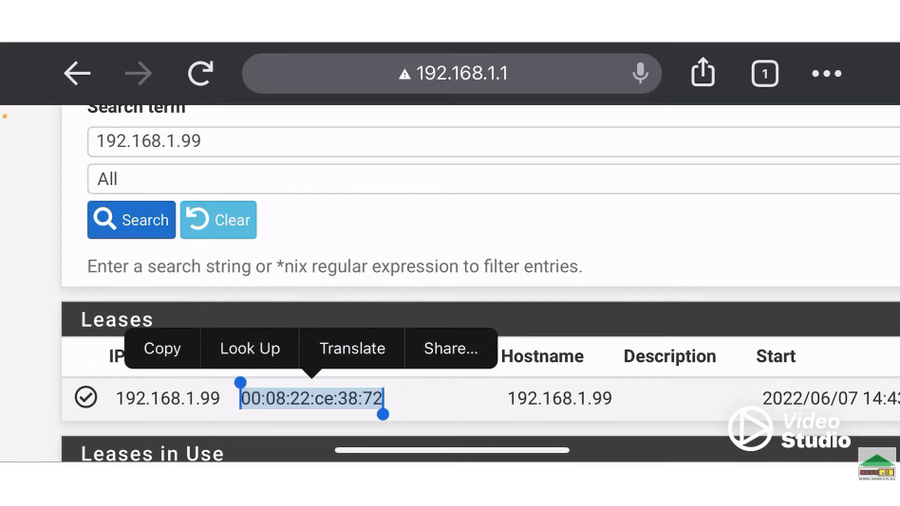
Before creating an exception, you must identify the physical MAC address of the user's device using their local IP address.
- Navigate to Status > DHCP Leases in the top menu.
- Use the search bar to look up the client's IP address (e.g., 192.168.1.99).
- Locate the corresponding MAC Address string and copy it.
Step 2: Create a MAC Pass-Through Exception
Bypass the standard captive portal timeout re-authentication checks for this specific device.
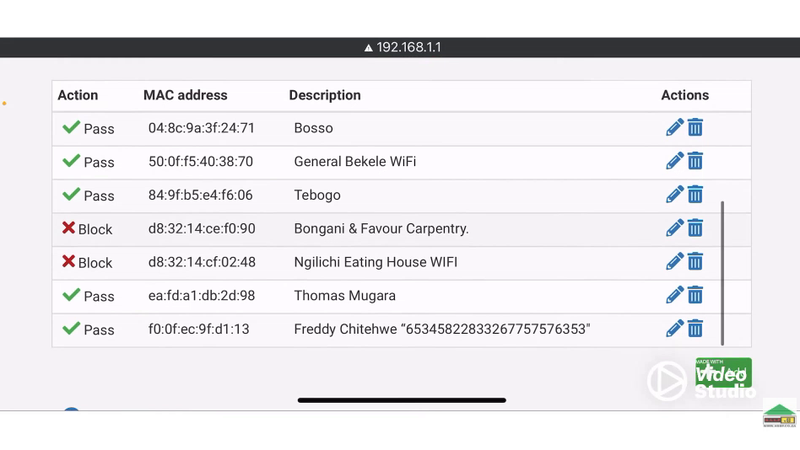
- Navigate to Services > Captive Portal.
- Click the Edit (Wrench icon) next to your active Captive Portal zone.
- Click on the MACs tab at the top of the settings page.
- Click the Add (+) button to create a new exception.
- Configure the following parameters:
- MAC Address: Paste the MAC address you copied in Step 1.
- Description: Enter a clear reference name (e.g., Trinity's Phone - 30 Day Voucher).
- Bandwidth Restriction: Leave blank unless you want to throttle their specific device speed.
- Click Save.
The device is now explicitly permitted to access the network seamlessly. The user can utilize their 30-day voucher connection continuously without being kicked out or prompted for a login screen when their daily session timer expires.
Would you like to learn how to configure global session timeouts to prevent this from happening to all users, or do you want help automating MAC deletions once their 30 days are over? Let us know.