To block unauthorized mobile hotspots and tethering on your network
To block unauthorized mobile hotspots and tethering on your network, we must prevent users from sharing their managed network connection with secondary devices. The most effective way to do this in pfSense is by modifying the Time-to-Live (TTL) values of network traffic. When a device hotspots, it acts as a router and decrements the TTL of packets passing through it by 1. By forcing pfSense to set all incoming packets to a rigid value (like 65), secondary tethered devices will emit packets with a mismatche
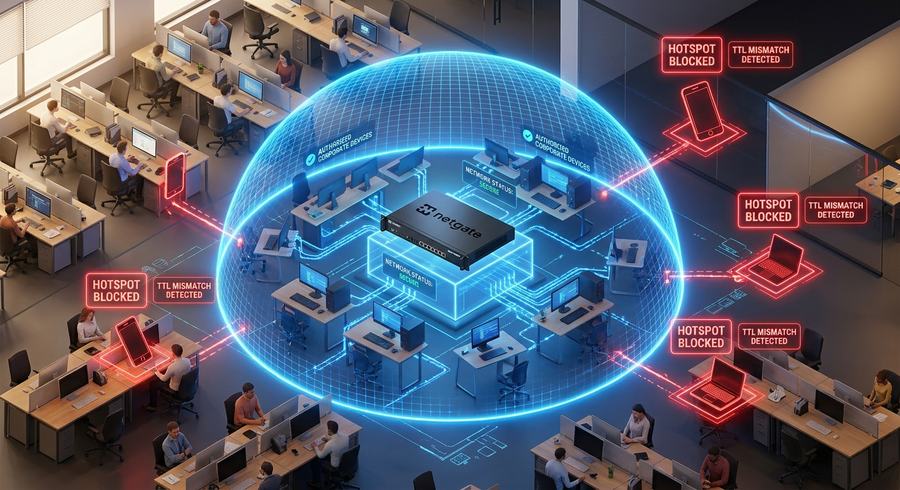
To block unauthorized mobile hotspots and tethering on your network, we must prevent users from sharing their managed network connection with secondary devices.The most effective way to do this in pfSense is by modifying the Time-to-Live (TTL) values of network traffic. When a device hotspots, it acts as a router and decrements the TTL of packets passing through it by 1. By forcing pfSense to set all incoming packets to a rigid value (like 65), secondary tethered devices will emit packets with a mismatched TTL (like 64), which can then be dropped.Here is the step-by-step configuration guide.Step 1: Configure TTL Filtering using Scrubber (PF)We will use the built-in packet reassembler (scrubber) to normalize network traffic lifetimes.
- Navigate to System > Advanced on the top menu.
- Click on the Firewall & NAT tab.
- Scroll down to the Bypass firewall rules for traffic on the same interface section.
- Locate the System Max MSS or Drop Don't Fragment sections nearby to ensure general scrubbing is active.
- In pfSense Plus 26.07, advanced packet normalization is handled natively via custom rules. To apply a global TTL lock, navigate to Firewall > Rules.
- Click on your primary user interface tab (e.g., LAN or WLAN).
- Click the Add (Up arrow) button to create a rule at the top of the list.
- Set the following parameters:
- Action: Pass
- Interface: LAN (or your user network)
- Address Family: IPv4
- Protocol: Any
- Source: LAN net
- Destination: Any
- Scroll down to Advanced Options and click Display Advanced.
- Find the Set TTL option and enter 65.
- Click Save and then click Apply Changes.
This forces every packet natively originating from a sanctioned workstation or phone to have a TTL of 65. If a user tries to hotspot, the secondary device's packets will hit pfSense with a TTL of 64 or lower, immediately flagging them or disrupting their routing sequence back to the ISP.Step 2: Implement Captive Portal with Concurrent Session LimitsMost automated hotspotting tools on phones break if they cannot handle multiple authentication streams over a single MAC address.
- Navigate to Services > Captive Portal.
- Click Add to create a new zone (e.g., User_WiFi).
- Check Enable Captive Portal.
- Scroll down to Concurrent Connections and set Concurrent logins per user to 1.
- Enable MAC Filtering to ensure that one physical radio cannot tunnel multiple IP addresses transparently.
- Click Save.
Step 3: Block Deep Packet Inspection (DPI) Patterns for Tethering AppsMany modern devices use specific carrier-checking domains to validate if a subscription allows tethering. You can block these via DNSBL (DNS Blacklist) in pfSense Unbound DNS.
- Navigate to Services > DNS Resolver > General Settings.
- Scroll down to Custom Options.
- Paste the following configuration to black-hole popular carrier entitlement checks (which mobile operating systems use to enable hotspot data routing):textlocal-zone: "vzwvm.com" redirect local-data: "vzwvm.com A 0.0.0.0" local-zone: "://tmobile.com" redirect local-data: "://tmobile.com A 0.0.0.0" local-zone: "://t-mobile.com" redirect local-data: "://t-mobile.com A 0.0.0.0" Use code with caution.
- Click Save and Apply Changes.
Step 4: Verify the Block is WorkingTo confirm that hotspot traffic is being dropped or isolated:
- Connect a smartphone to your pfSense network.
- Turn on the hotspot on that smartphone and connect a laptop to the phone's hotspot.
- Try to load a website from the laptop.
- Navigate to Status > System Logs > Firewall on your pfSense dashboard. You will see traffic originating from mismatched or non-matching standardized TTL brackets being blocked or rejected.
If you like me to help you write the custom script or cron job to automatically alert your management team whenever a specific user's MAC address triggers a mismatched TTL count...Just let us know